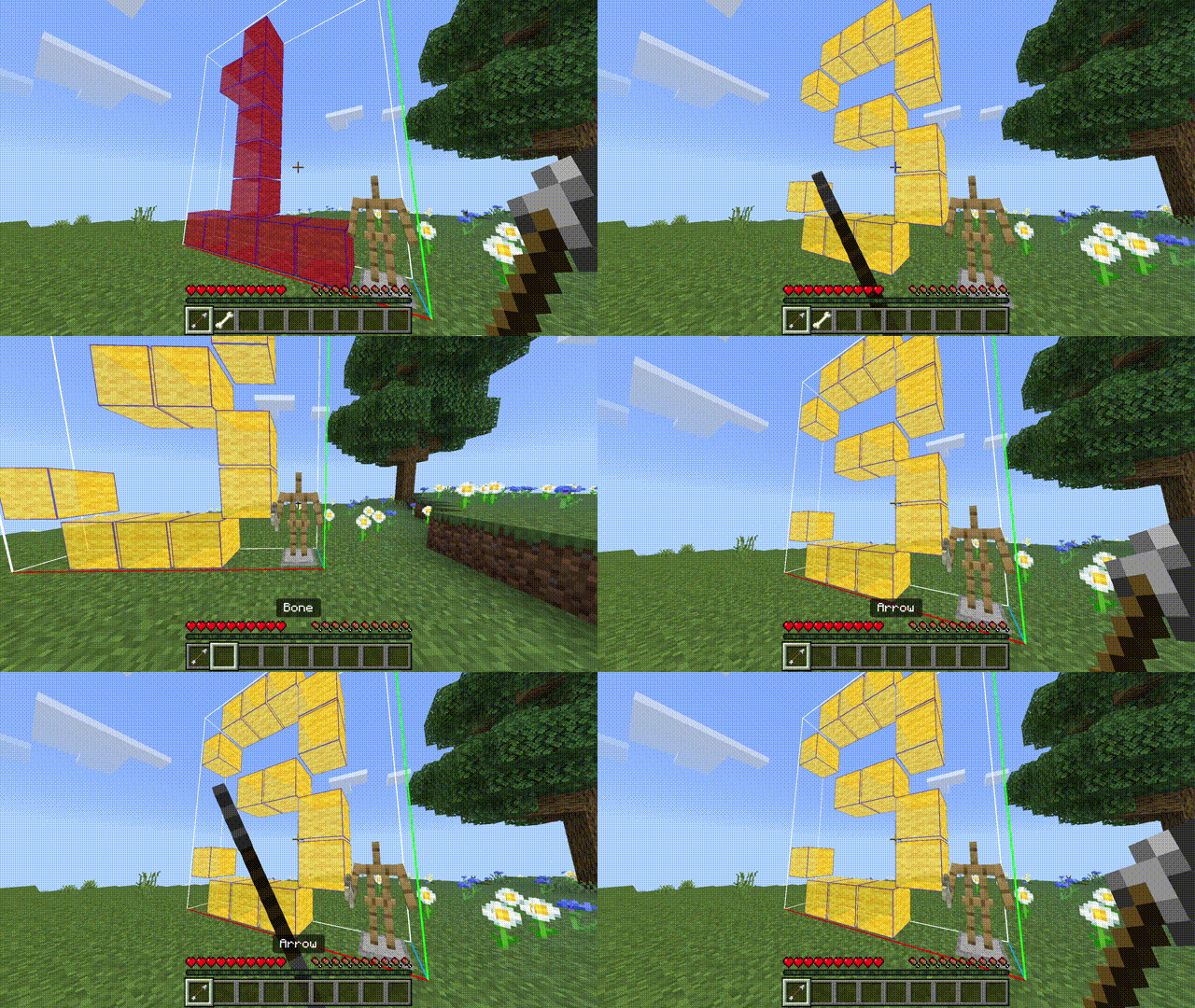
Hologram controls
In HoloPrint you have three ways to control the hologram: With UI controls, player controls, and armour stand controls.
WARNING
UI controls and player controls may be unreliable, but armour stand controls will always work.
Disabling the paper doll may help player controls to work.
Special thanks to kizoku246 for the house in these images!
UI controls: Touch
On touch devices, you will see two extra buttons at the top of the screen:
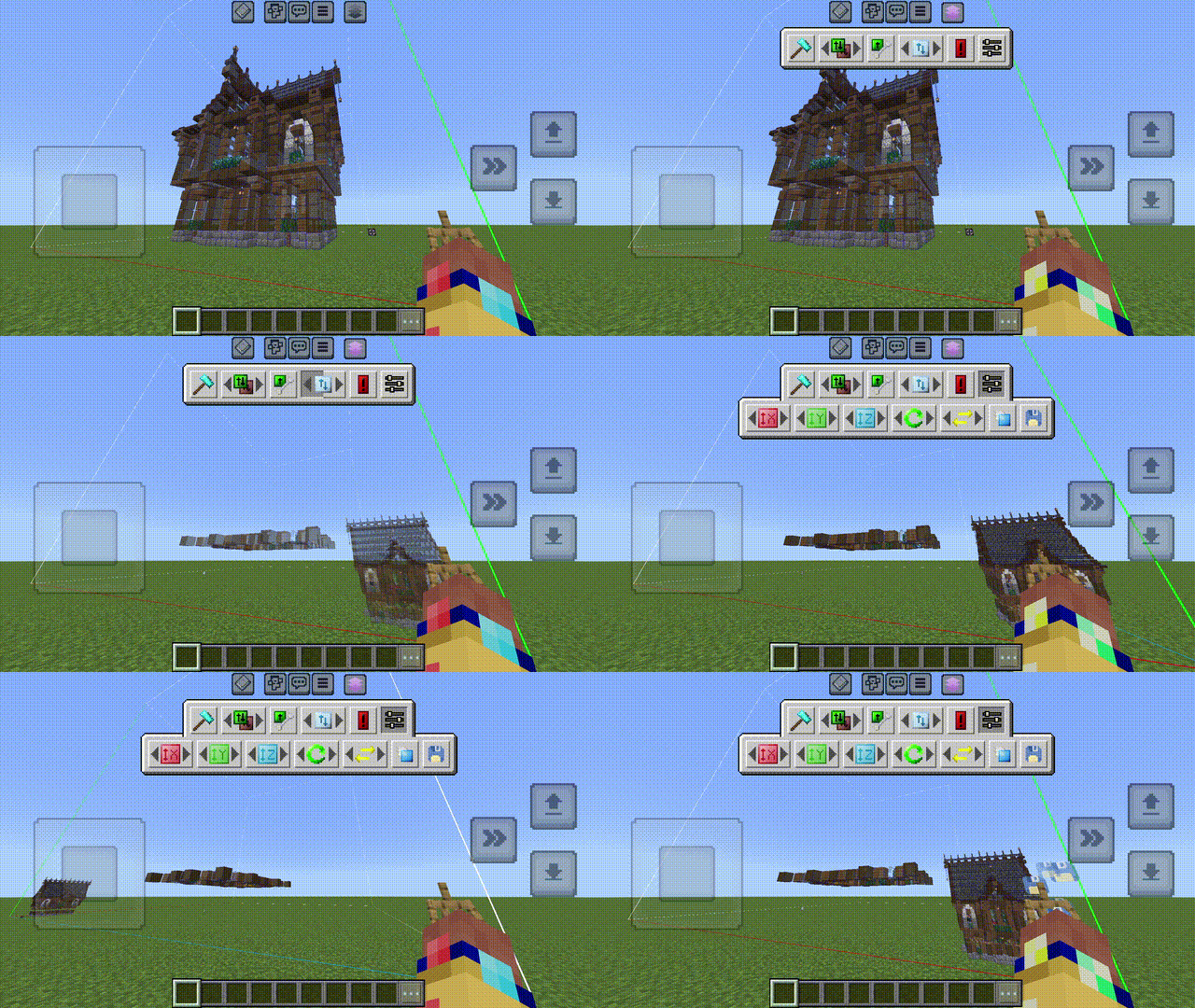
The button on the left shows/hides the material list. The button on the right opens/closes a menu for remotely controlling the hologram. Each button will control the hologram in a way that corresponds to a player control that is listed below.
The button on the right of this menu opens up a second row of options. These options are mostly for positioning and setting up the hologram at the start.
UI controls: Keyboard
On devices with a keyboard (no mouse required!), you will see a popup when you first load the world: 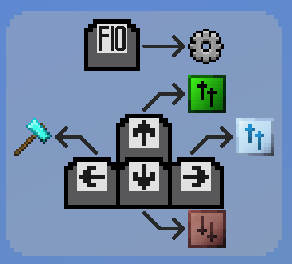
Initially, you will be in quick input mode. This means that you can use the following keyboard shortcuts:
| Key | Action |
|---|---|
| Left arrow key | Toggle rendering |
| Right arrow key | Increase opacity |
| Up arrow key | Increase layer |
| Down arrow key | Decrease layer |
In quick input mode, you will have the most commonly used controls for convenience. However, you may want to access the full set of player controls. You can do this by pressing F10, which will switch you into full input mode.
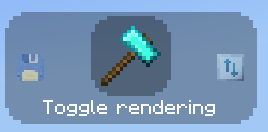
In this input mode, the left/right arrow keys switch which control you have selected. The up/down arrow keys will then execute this action. Note that some actions, such as "Change layer", will do different things depending on if you pressed up or down, whereas other actions, such as "Toggle rendering", will do the same thing regardless of if you pressed up or down.
You can switch between quick input mode and full input mode at any time by pressing F10.
NOTE
Unfortunately, there is no way in Bedrock Edition to customise the exact keys used for these player controls.
Player controls
For player controls with items, attack while holding the specific item to perform the action. Because of Bedrock Edition being Bedrock Edition, other player actions may also accidentally trigger the hologram control.
Toggle rendering
Default: Brick
This will show/hide the hologram. Most player controls won't do anything while the hologram is hidden.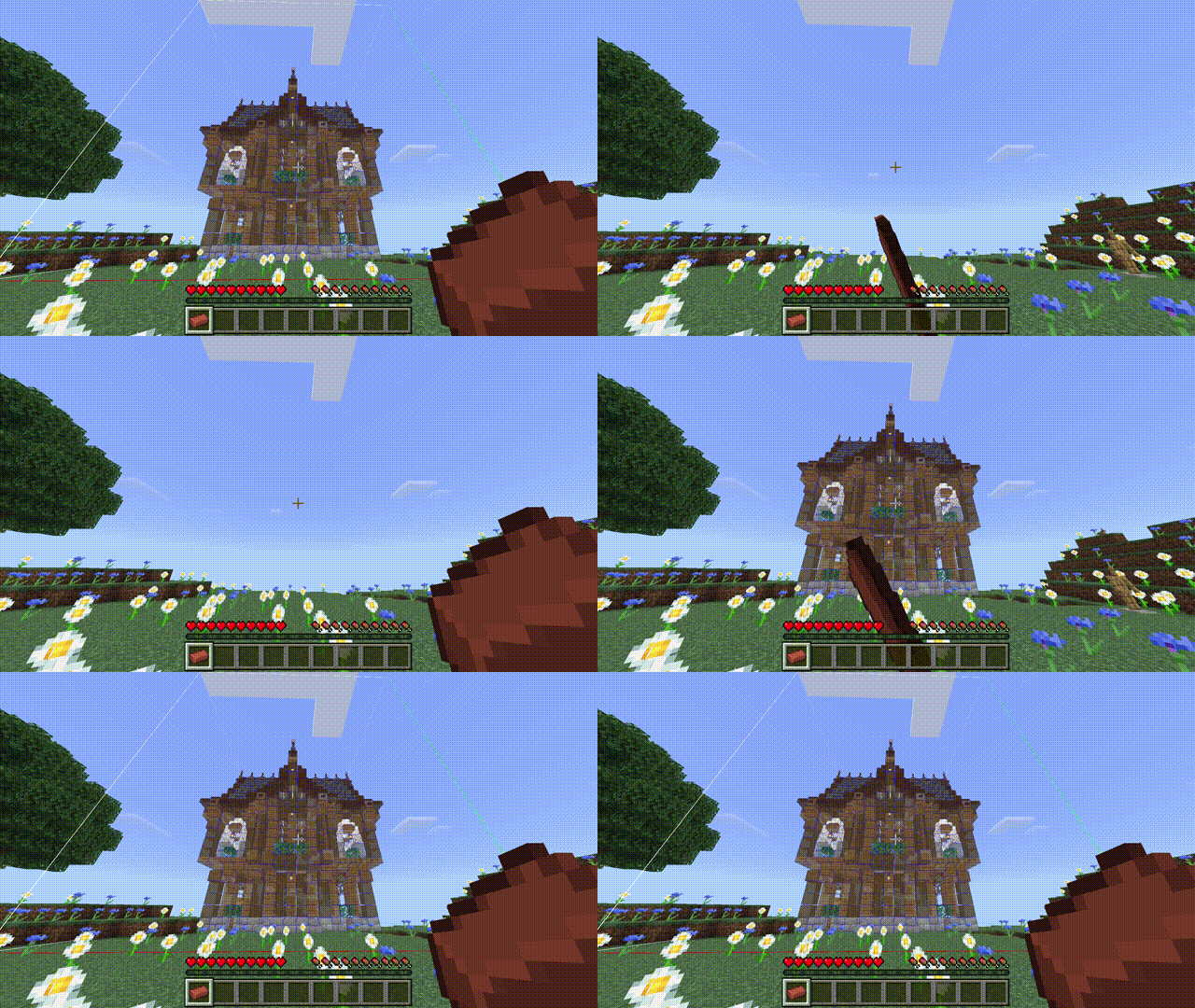
Change transparency
Default: Amethyst shard (sneak to decrease, stand to increase)
This will change the hologram opacity in 10% steps, going from 40% to 100%.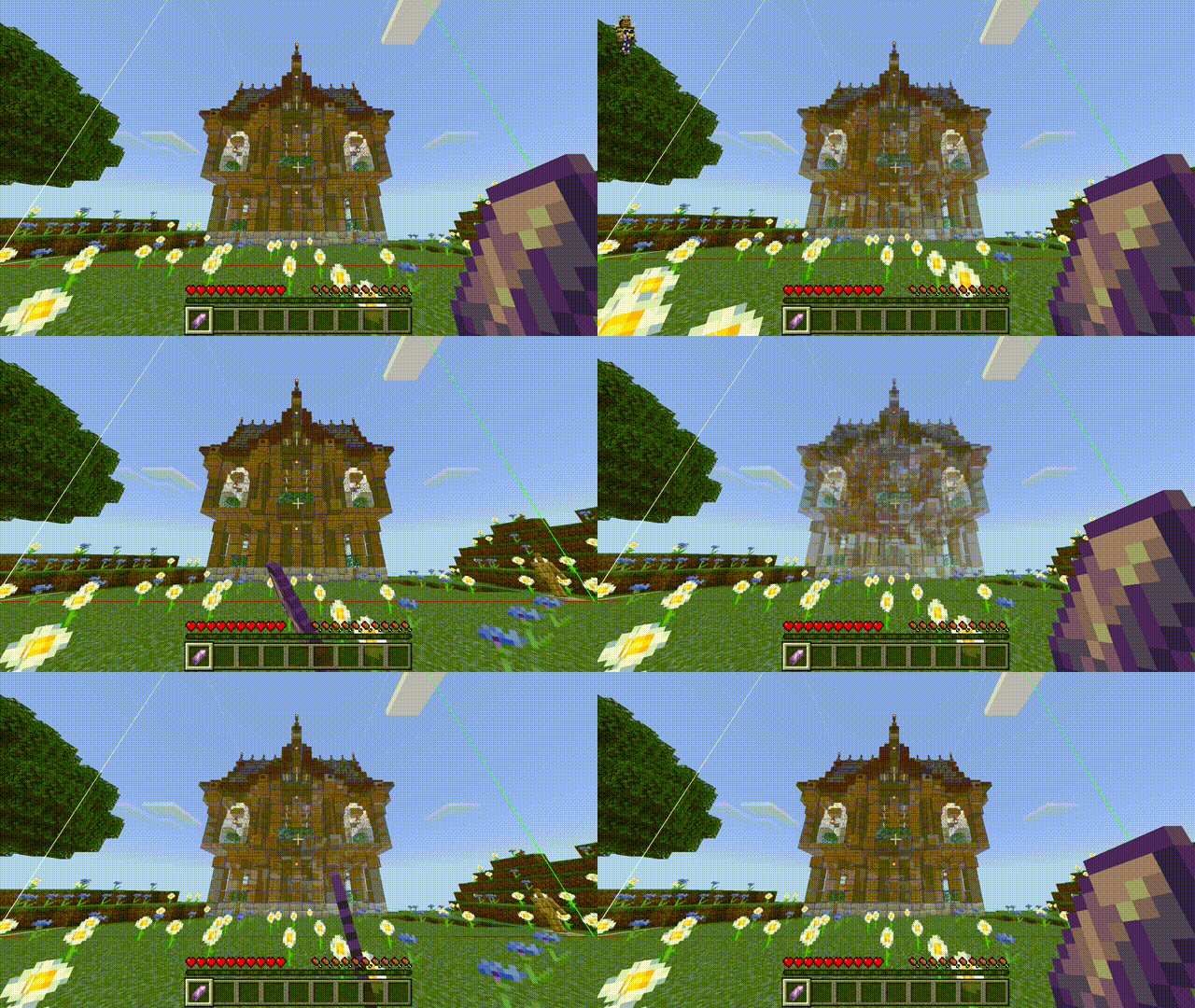
Change layer
Default: Leather (sneak to decrease, stand to increase), or changing the pose on the armour stand
This will show a single layer and make everything else small, useful for building structures layer-by-layer.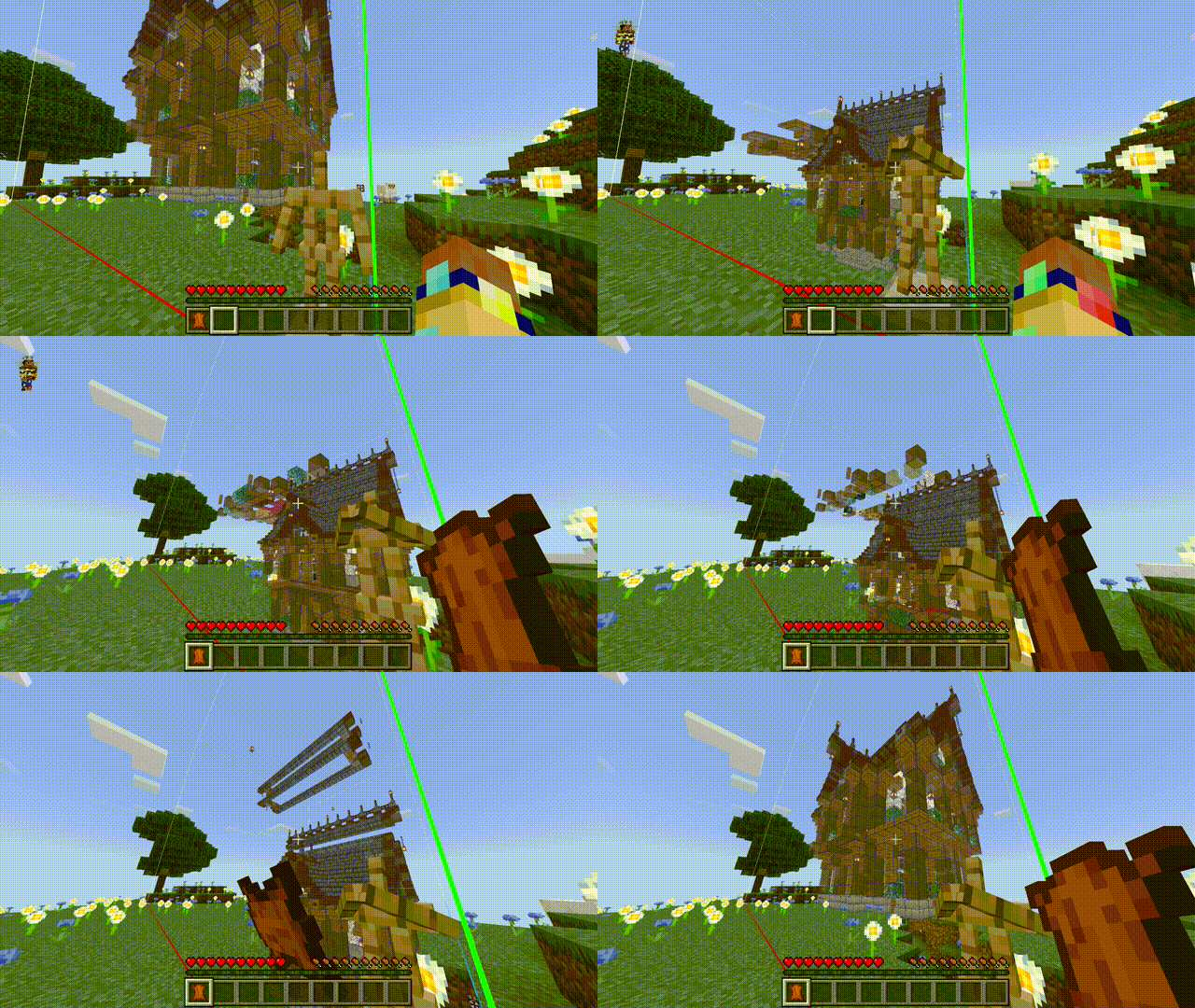
Move hologram
Default: Stick
Holograms can be moved around without moving the armour stand.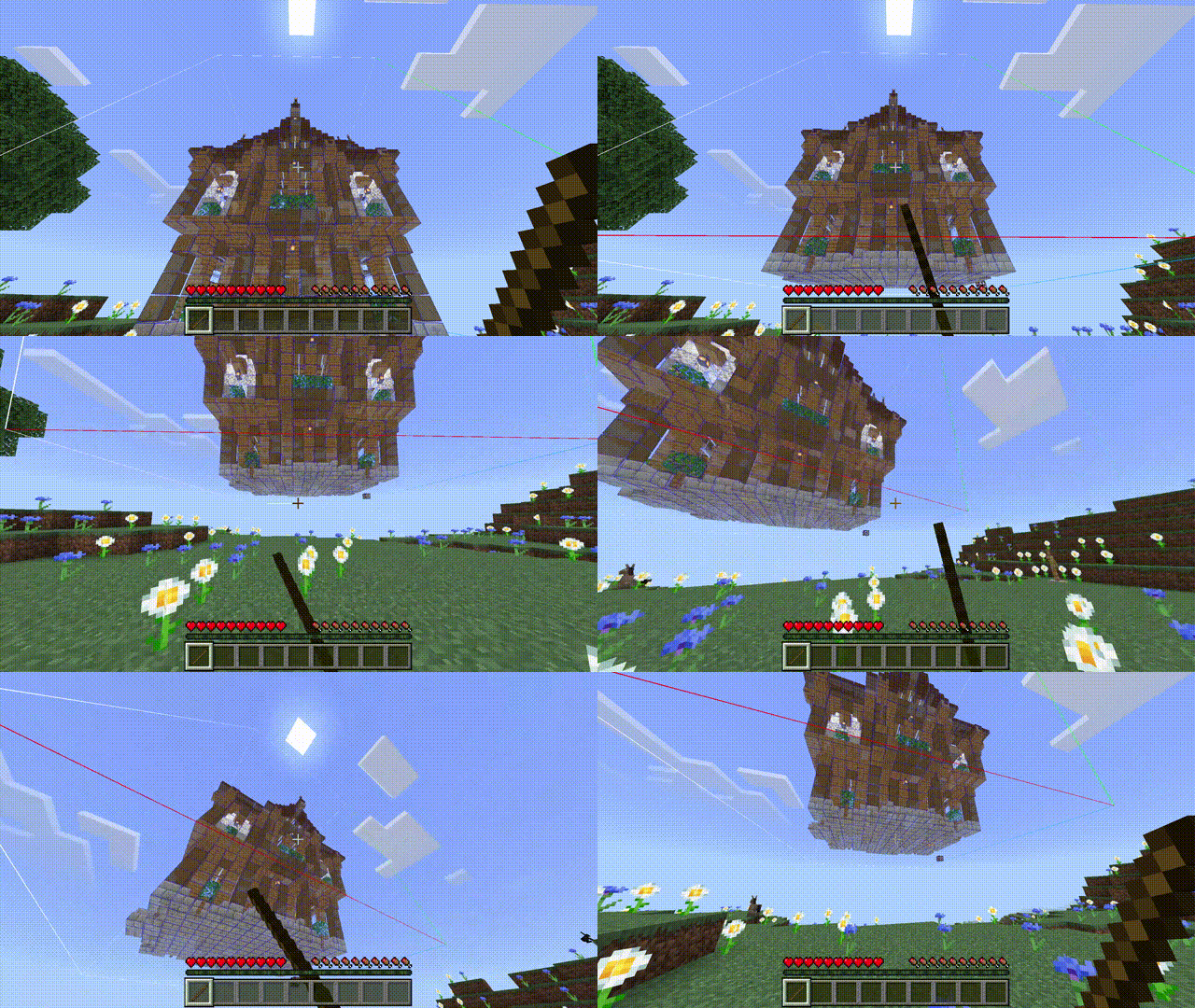
Rotate hologram
Default: Copper ingot
Standing will rotate the hologram 90° clockwise, and sneaking will rotate it 90° anticlockwise.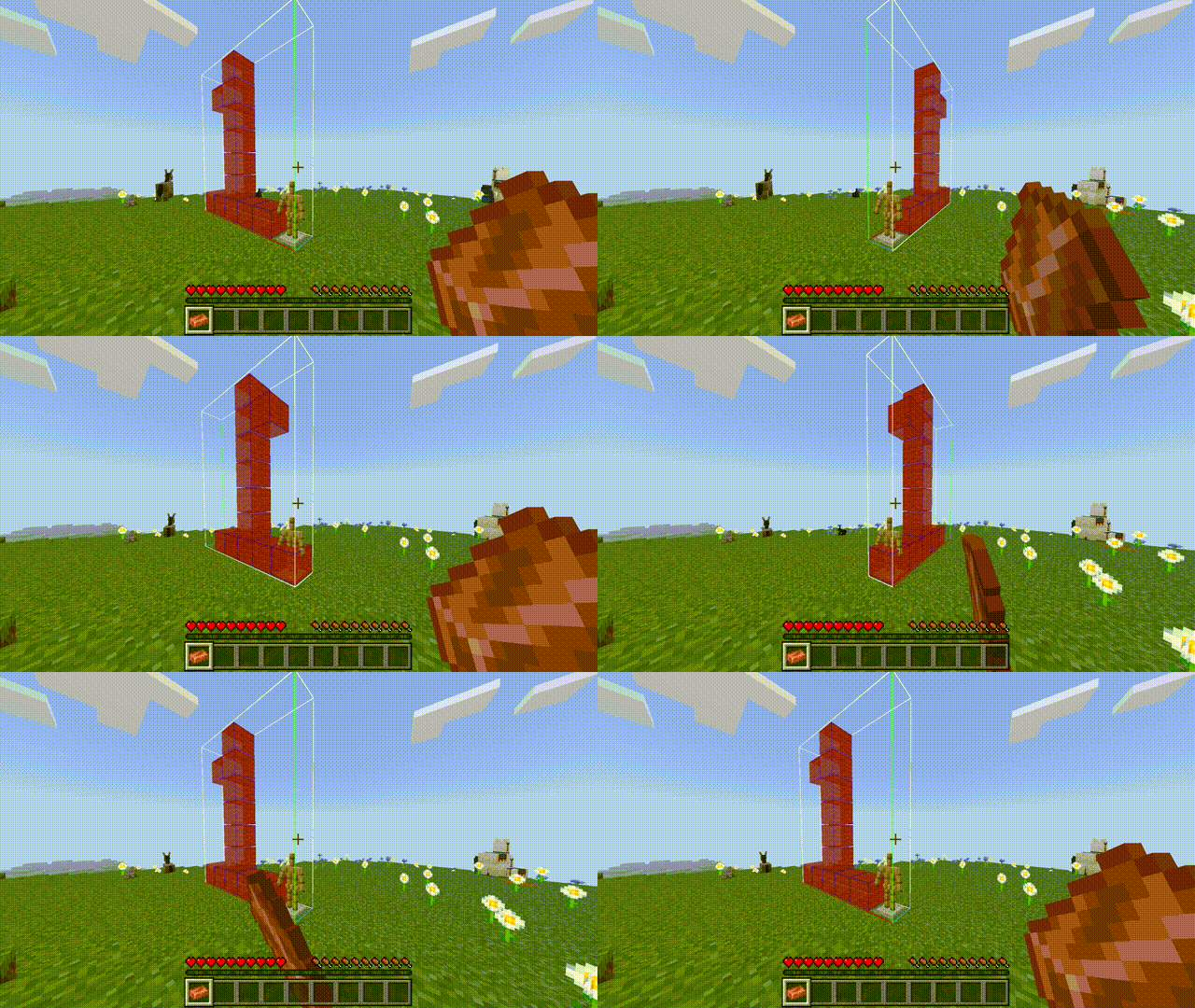
Block validation
Default: Iron ingot
This will check if all blocks in the hologram are correct. It does not check air blocks, and cannot check block states. If the hologram is on a single layer, it will only validate that layer.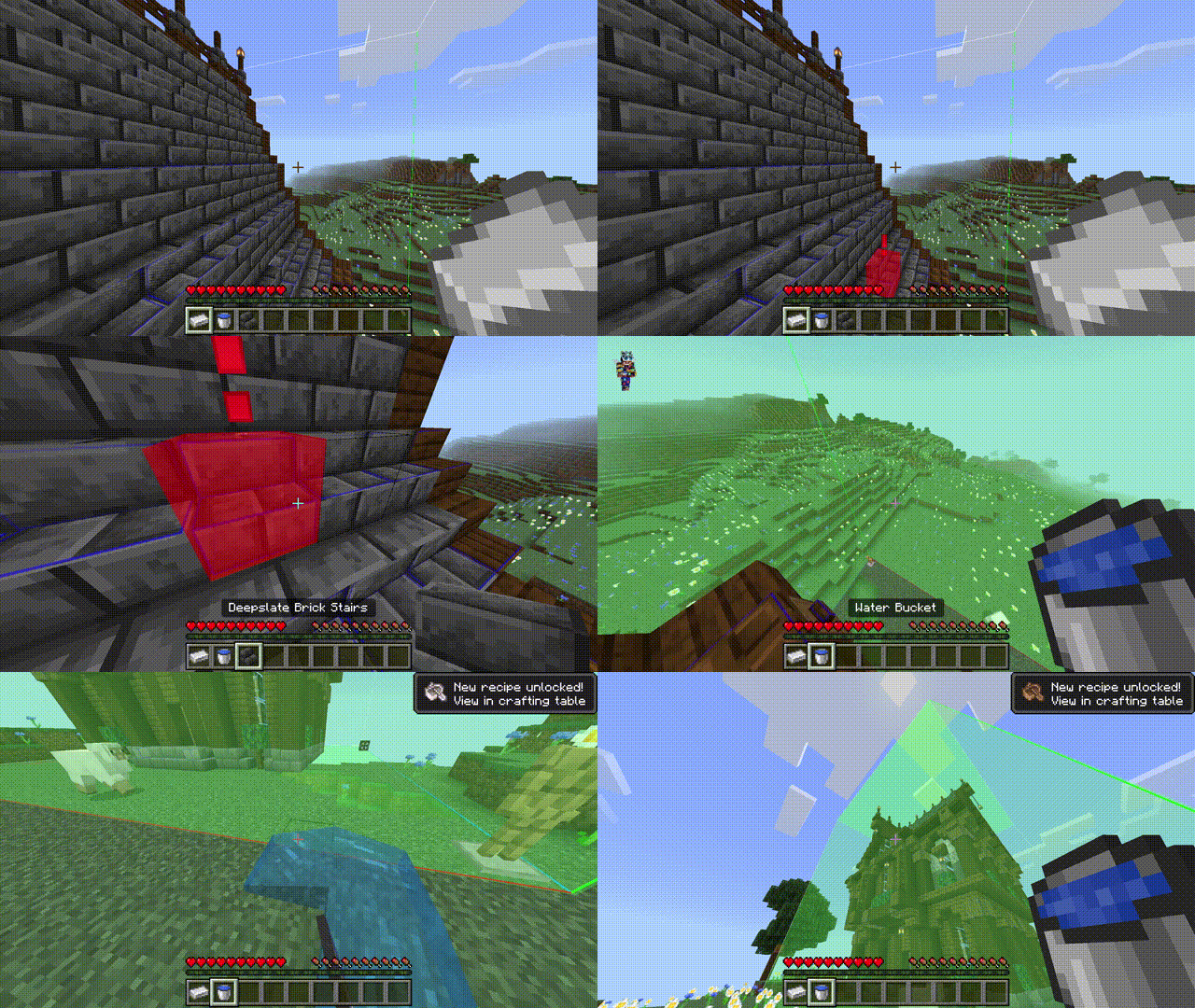
Material list
Default: Tab button (keyboard), book icon (touch)
This will show a UI overlay of the materials used in the hologram, as well as how many of each are needed. If multiple structures are in the same pack, the material lists will be merged together. Item icons may show the wrong item.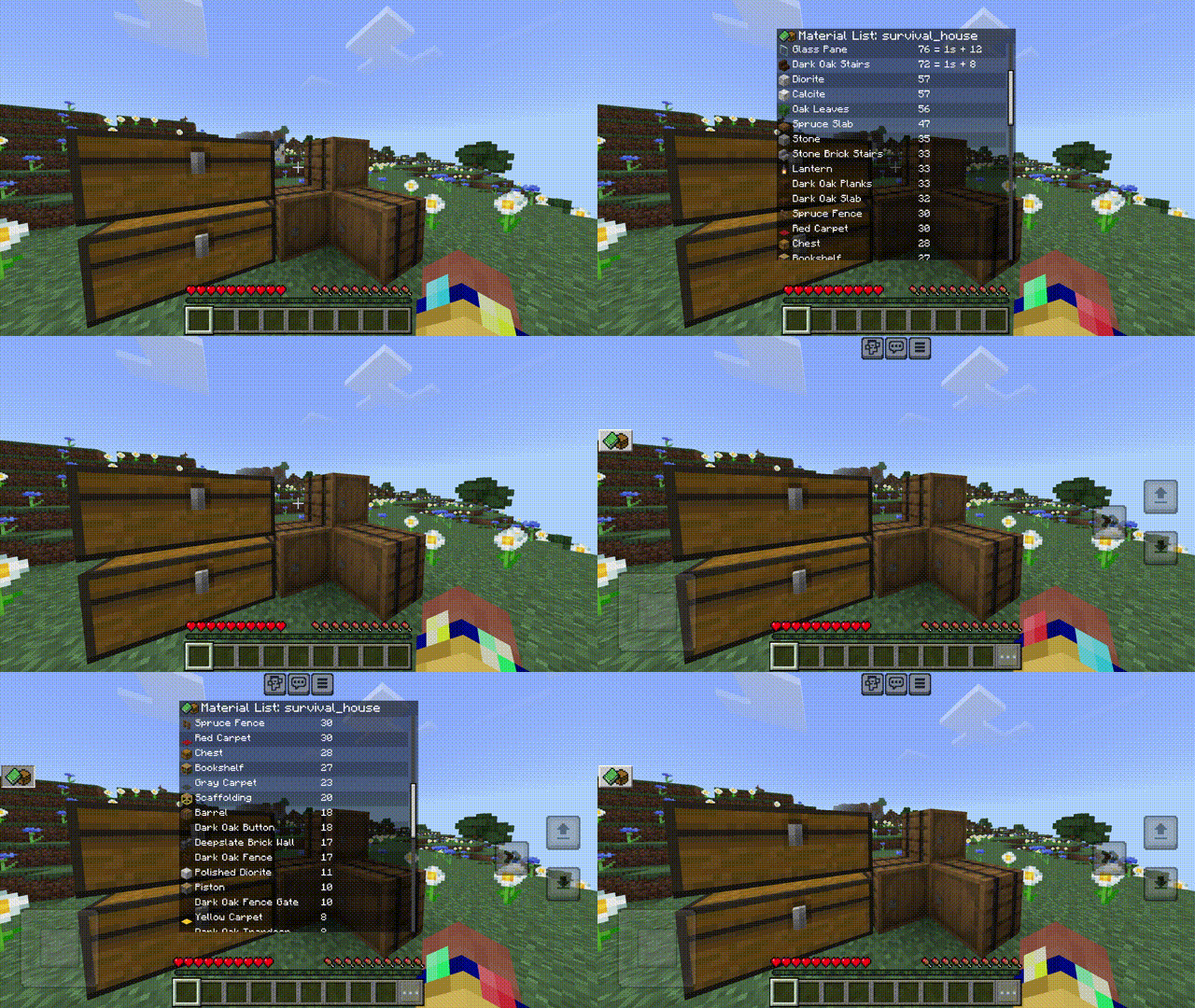
Toggle overlay tint
Default: White dye
Similar to Litematica, this will show/hide an overlay colour on the hologram, useful for distinguishing what is real and what is part of the hologram. The colour and opacity of the tint can be changed on the pack creation website under Settings > Textures.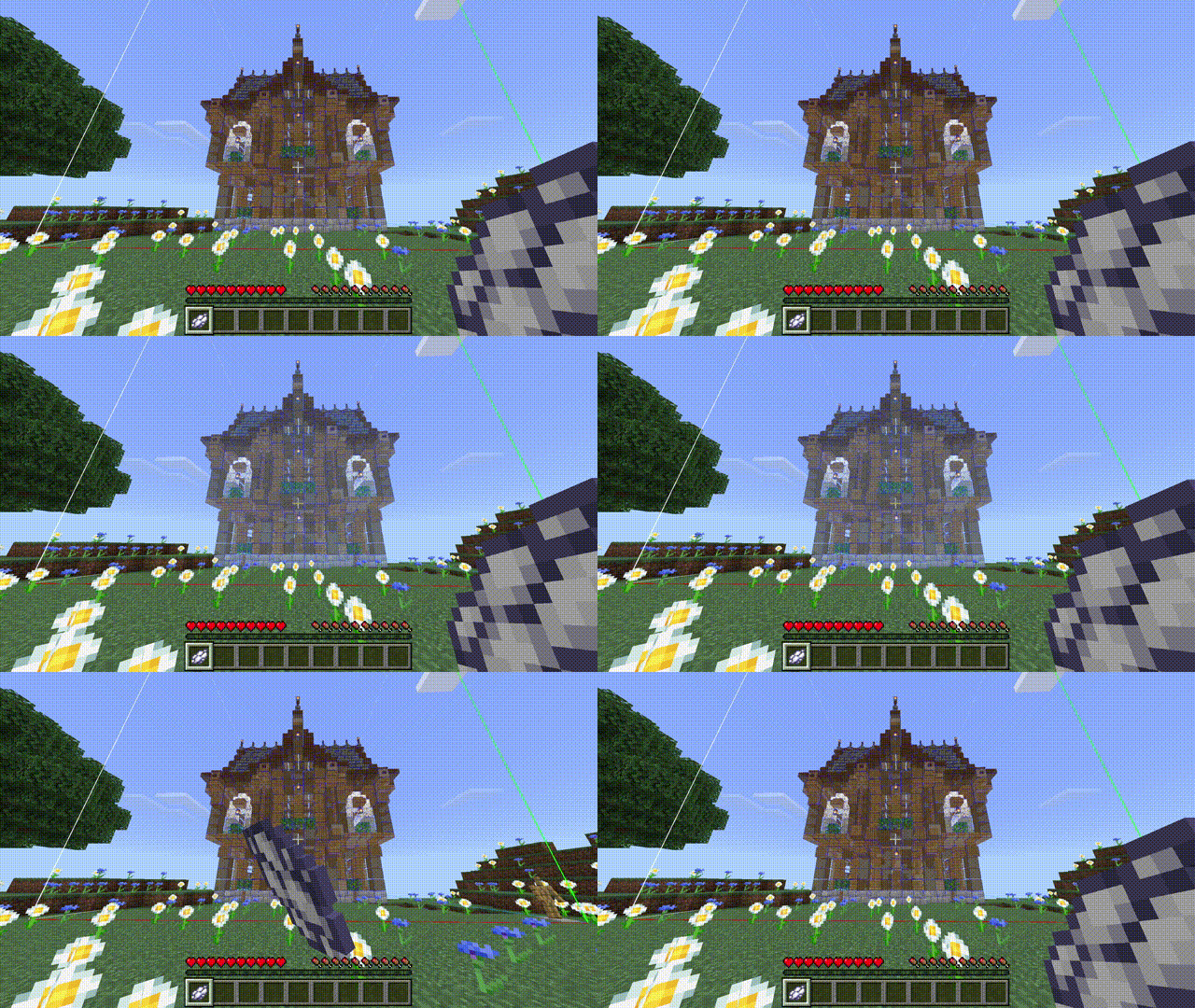
Change layer mode
Default: Flint
This will switch between showing a single layer and showing all layers below, when on a specific layer.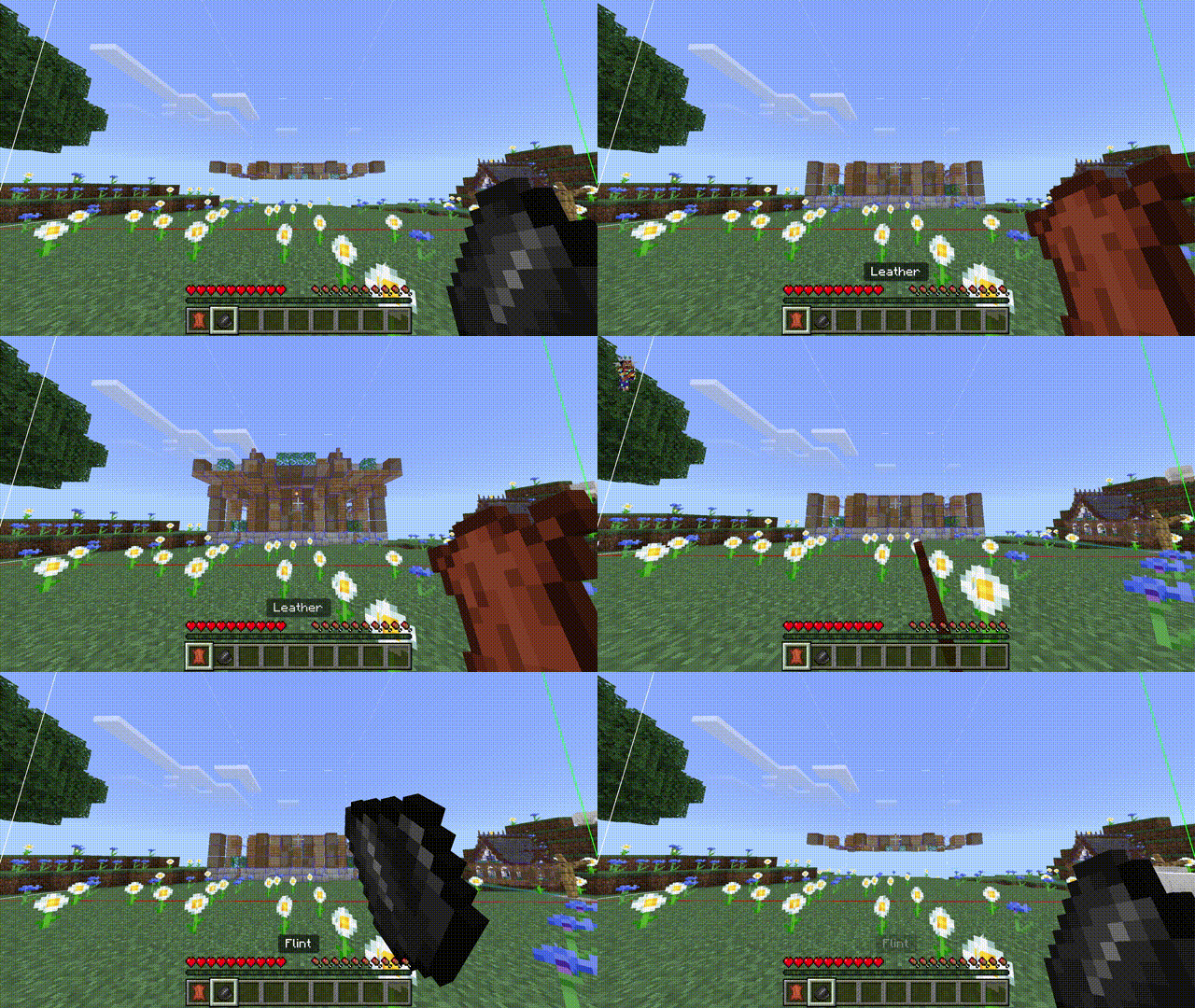
Change structure
Default: Arrow, or hit armour stand that's holding nothing
If multiple structures are in the same pack, this will change between them. If you stand, it will go to the next structure; if you sneak, it will go to the previous structure.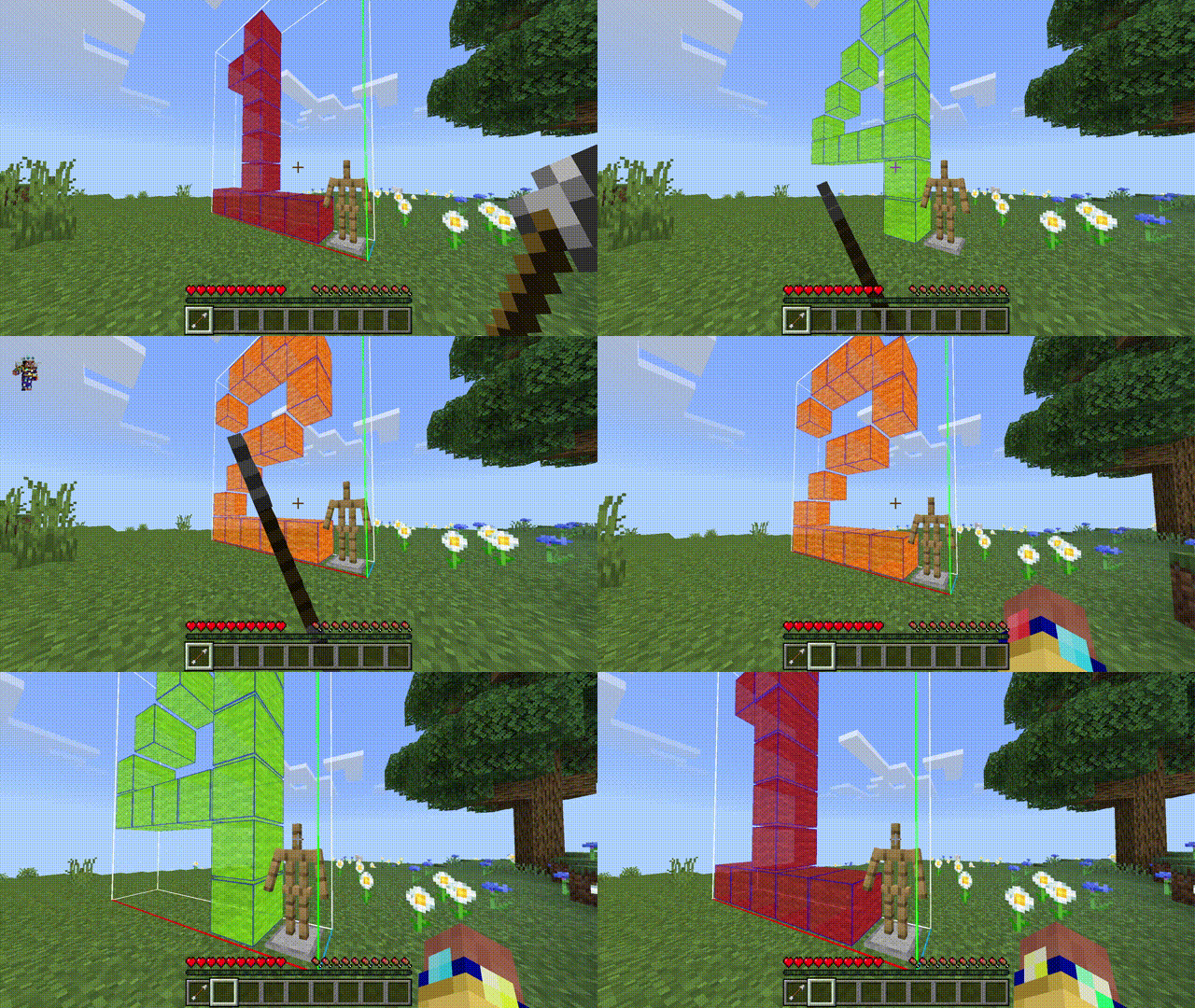
Save hologram settings
Default: Paper
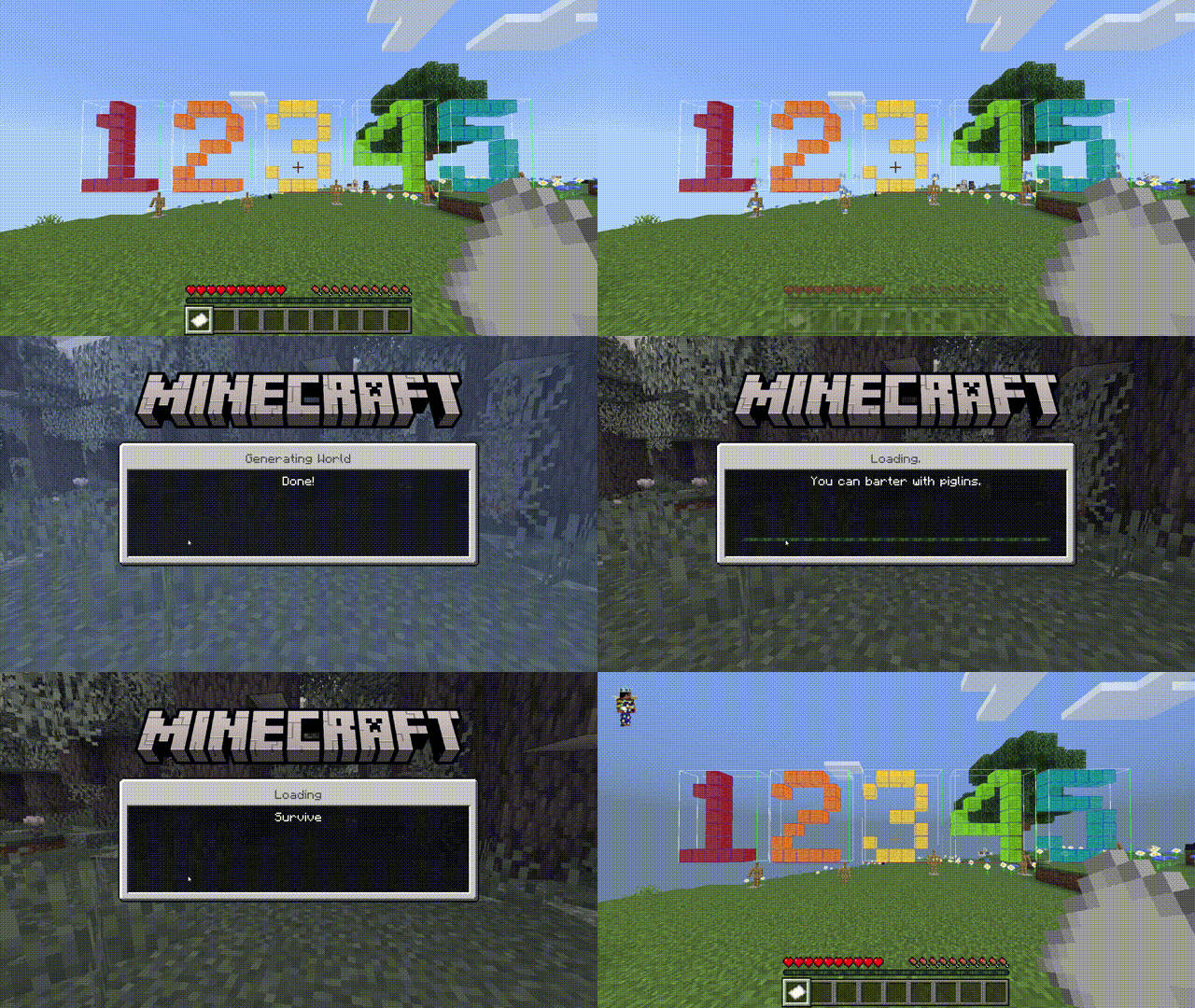
This will make all armour stands save their settings and status for the next 30 seconds. This will happen automatically to armour stands >55 blocks away from the player. If an armour stand is unloaded while it is saving (indicated by particles on the armour stand), it will load its previous settings when it is reloaded. This will work if they are unloaded due to changing dimension, leaving the world, or simply going too far away. There are a limited number of backup slots, which can be configured with the Settings > Advanced > Backup slot count setting (default: 10).
Armour stand controls
Default: Give item or hit
Due to player controls being unreliable, all player controls (with the exception of moving the hologram) can also be performed on the armour stand by giving it the corresponding item, and hitting it.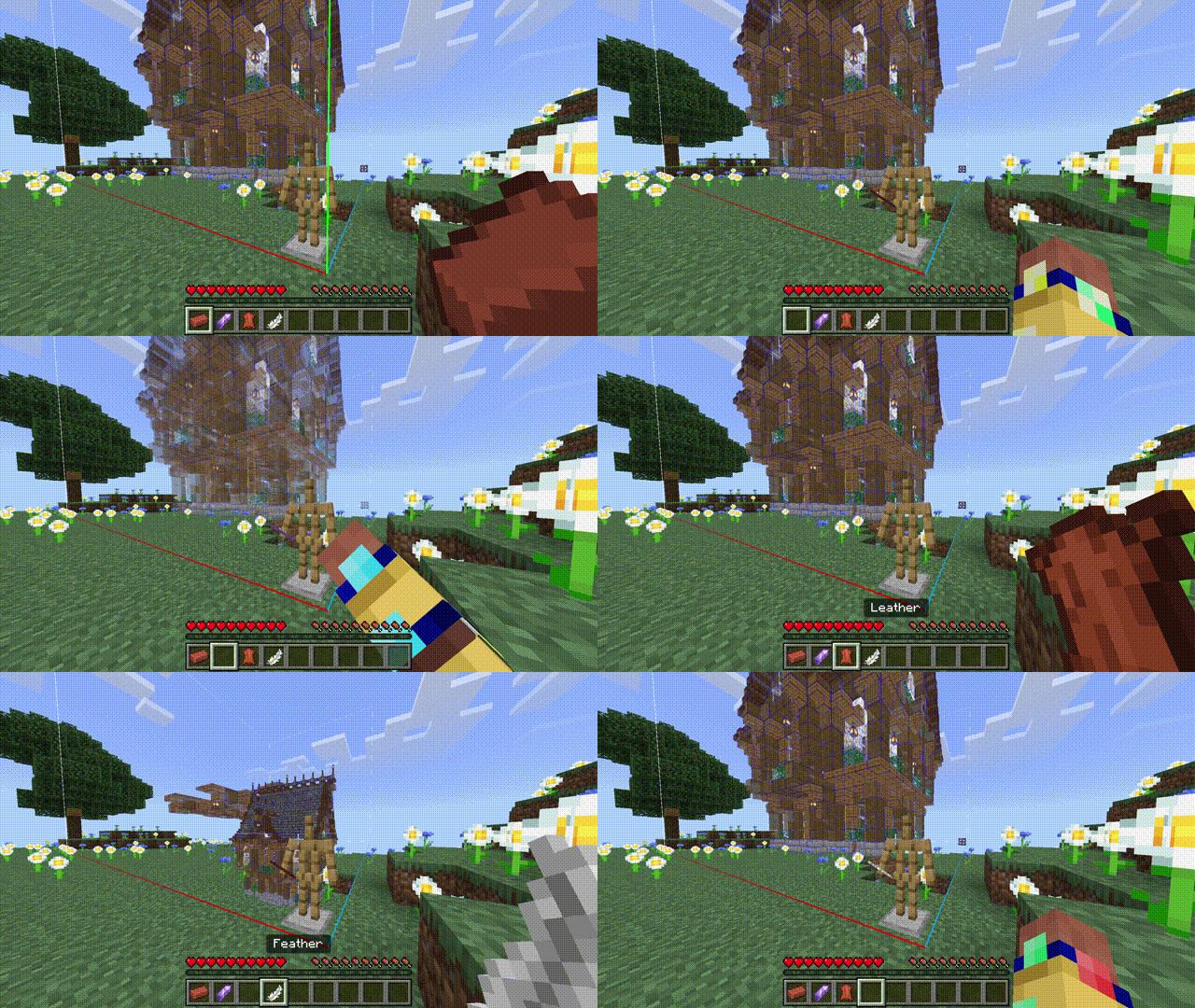
Disable player controls
Default: Bone
Armour stands holding bones will not respond to player controls. This allows you to select which armour stands respond to player controls.